
How to Use IPTV Smarters Pro: The Complete 2026 Guide
Master installation, setup, and optimization on Firestick, Android & iOS with our step-by-step tutorial for USA, UK, and Canadian users
Introduction: Why IPTV Smarters Pro is the #1 Media Player in 2026
IPTV Smarters Pro has revolutionized how millions of users stream live television, movies, and series across the USA, UK, and Canada. As we enter 2026, this powerful media player continues to dominate the streaming landscape with its intuitive interface, robust feature set, and exceptional compatibility across devices.
Whether you’re looking for the best IPTV USA streaming experience, searching for a reliable solution for your Firestick, or wanting to enjoy 4K content with zero buffering, IPTV Smarters Pro delivers unmatched performance. This comprehensive guide will walk you through everything from basic installation to advanced optimization techniques, ensuring you get the most out of your streaming experience.

IPTV Smarters Pro’s intuitive dashboard interface
What sets IPTV Smarters Pro apart from competitors is its sophisticated anti-freeze technology, seamless support for both Xtream Codes API and M3U playlist formats, and the ability to handle multiple provider accounts simultaneously. Whether you’re a tech novice or an advanced user, this guide covers everything you need to know.
📌 Quick Summary: What You’ll Learn
- Complete installation process for Firestick, Android, and iOS devices
- How to configure Xtream Codes API and M3U playlists correctly
- Optimizing settings for 4K streaming and anti-freeze performance
- Troubleshooting common errors like “Failed to Authorize” and buffering
- Security best practices and VPN recommendations for safe streaming
- Advanced features to enhance your viewing experience
Chapter 1: Prerequisites for IPTV Smarters Pro
Before diving into the installation process, it’s crucial to ensure your setup meets the necessary requirements for optimal performance. IPTV streaming, especially when dealing with 4K streaming guide content, demands specific hardware and network capabilities.
Internet Speed Requirements
Your internet connection is the foundation of a smooth IPTV experience. Here’s what you need for different streaming qualities:
| Streaming Quality | Minimum Speed | Recommended Speed |
|---|---|---|
| SD (480p) | 3-5 Mbps | 8 Mbps |
| HD (720p) | 5-8 Mbps | 12 Mbps |
| Full HD (1080p) | 10-15 Mbps | 25 Mbps |
| 4K/UHD | 25-35 Mbps | 50+ Mbps |
💡 Pro Tip: Wired vs Wireless
For the best streaming experience, especially for 4K content, use a wired Ethernet connection whenever possible. Wired connections provide more stable bandwidth and lower latency compared to Wi-Fi, reducing buffering and pixelation issues.
Device Compatibility
IPTV Smarters Pro supports an extensive range of devices, making it accessible regardless of your preferred streaming platform:
- Amazon Fire TV Devices: Firestick 4K, Fire TV Stick (2nd Gen and later), Fire TV Cube
- Android Devices: Android TV boxes, smartphones, and tablets running Android 5.0 or higher
- iOS Devices: iPhone, iPad, and Apple TV running iOS 12.0 or later
- Smart TVs: Samsung Tizen OS, LG webOS (via APK installation)
- Windows/Mac: Through Android emulators or dedicated desktop versions
What You’ll Need to Get Started
- Active IPTV Subscription: Your provider should give you either Xtream Codes API credentials (server URL, username, password) or an M3U playlist URL
- Stable Internet Connection: As outlined in the speed requirements above
- Compatible Device: Any device from the compatibility list
- VPN (Recommended): For privacy and accessing geo-restricted content
⚠️ Important Notice
IPTV Smarters Pro is a media player application. You need to obtain IPTV service credentials from a legitimate provider separately. The app itself does not provide any content or streaming services. Always ensure you’re using legal IPTV services in your region.
Chapter 2: Step-by-Step Installation Guide
Installing IPTV Smarters Pro varies slightly depending on your device. This section provides detailed instructions for the three most popular platforms: IPTV Smarters Pro Firestick, Android, and iOS devices.
Installing on Amazon Firestick (Most Popular Method)
The Firestick installation process is straightforward but requires enabling apps from unknown sources. Here’s the complete walkthrough:
Step 1: Enable Apps from Unknown Sources
- From your Firestick home screen, navigate to Settings
- Select My Fire TV (or “Device” on older models)
- Click on Developer Options
- Turn on Apps from Unknown Sources
- Confirm the warning dialog by selecting Turn On
Step 2: Install Downloader App
- Return to the Firestick home screen
- Use the search function (magnifying glass icon) and type “Downloader”
- Select the Downloader app by AFTVnews.com
- Click Download and wait for installation to complete
- Open the Downloader app
Step 3: Download IPTV Smarters Pro
- In the Downloader app URL field, enter the official download link (provided by your IPTV service or from the official website)
- Click Go and wait for the APK file to download
- Once downloaded, the installation prompt will appear automatically
- Select Install
- After installation completes, click Done
Visual guide to installing IPTV Smarters Pro on Firestick
💡 Pro Tip: Organizing Your Apps
After installation, move IPTV Smarters Pro to your Firestick home screen for easy access. Press and hold the Home button, select “Apps,” find IPTV Smarters Pro, press the menu button (three lines), and choose “Move to front.”
Installing on Android Devices
Android installation is the simplest process, with multiple options available:
Method 1: Google Play Store (Recommended)
- Open the Google Play Store on your Android device
- Search for “IPTV Smarters Pro”
- Select the official app (check developer name: Whmcs Smarters)
- Tap Install
- Wait for download and installation to complete
- Tap Open to launch the app
Method 2: APK Installation (For Android TV Boxes)
- Enable Unknown Sources in Settings > Security
- Download the official APK from the IPTV Smarters website
- Use a file manager to locate the downloaded APK
- Tap the APK file and select Install
- Launch the app once installation is complete
Installing on iOS Devices (iPhone/iPad)
iOS users can download IPTV Smarters Pro directly from the official App Store:
- Open the App Store on your iOS device
- Tap the Search tab at the bottom
- Type “IPTV Smarters Pro” in the search bar
- Select the official app from Whmcs Smarters
- Tap Get, then Install
- Authenticate with Face ID, Touch ID, or your Apple ID password
- Wait for installation to complete, then tap Open
Installing on Apple TV
- Navigate to the App Store on your Apple TV
- Use the search function to find “IPTV Smarters Pro”
- Download and install the application
- Launch the app from your home screen
⚠️ Security Warning
Always download IPTV Smarters Pro from official sources only. Avoid third-party websites offering modified APK files, as these may contain malware or compromised code that could steal your login credentials or harm your device.
Chapter 3: How to Log In – Xtream Codes API vs M3U URL
IPTV Smarters Pro supports two primary login methods: Xtream Codes API setup and M3U playlist tutorial. Understanding the difference and knowing how to configure each is essential for accessing your IPTV content.
Understanding the Two Login Methods
Xtream Codes API is the most popular and feature-rich method. It provides access to live TV, VOD (movies and series), EPG (Electronic Program Guide), and catch-up TV when supported by your provider. This method requires three pieces of information: server URL, username, and password.
M3U URL/Playlist is a simpler method that uses a direct link to your channel list. While easier to set up, it typically offers fewer features and may not include VOD content or EPG data, depending on your provider.
Method 1: Logging In with Xtream Codes API
This is the recommended method for most users, especially those using premium best IPTV USA services:
- Launch IPTV Smarters Pro on your device
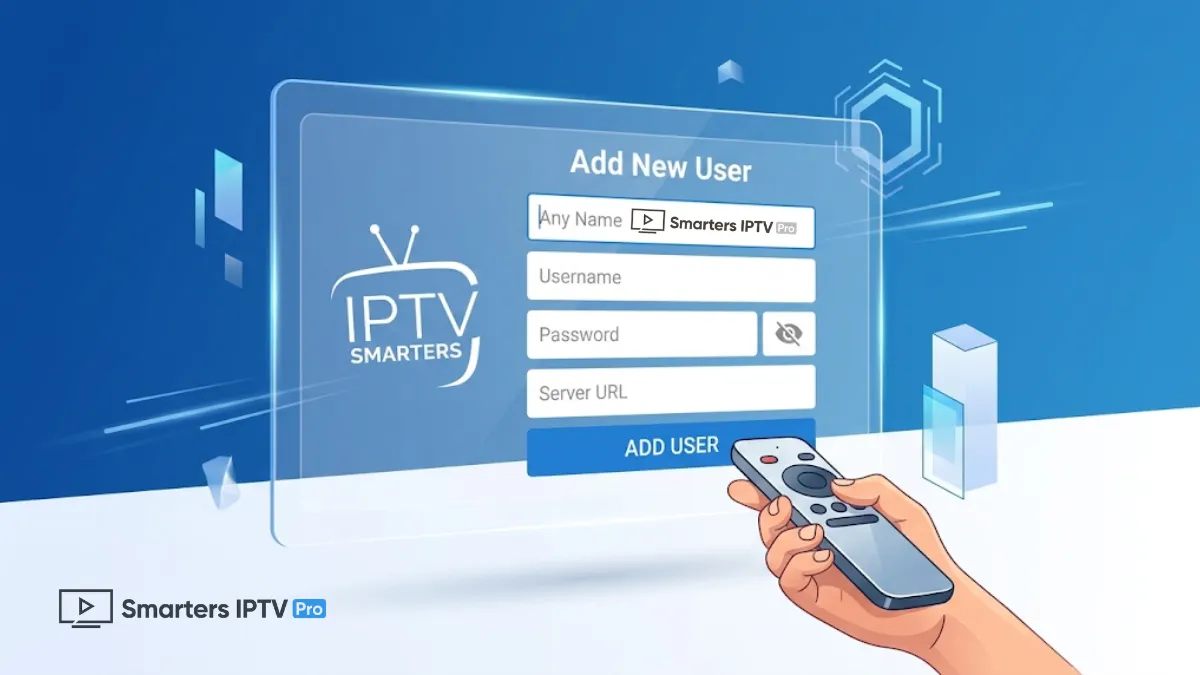
- On the welcome screen, select Login with Xtream Codes API
- Enter your credentials in the following fields:
- Server URL: Your IPTV provider’s server address (usually starts with http:// or https://)
- Username: Your unique username provided by your IPTV service
- Password: Your account password
- Give your account a recognizable name in the Name field (e.g., “Main IPTV” or “Family Account”)
- Click Add User to save and log in
Method 2: Logging In with M3U URL
If your provider supplies an M3U playlist URL instead of Xtream Codes credentials:
- Open IPTV Smarters Pro
- Select Add New User from the main menu
- Choose Load Your Playlist or File/URL
- Select the M3U URL option
- Enter your playlist details:
- Playlist Name: Choose a memorable name for this playlist
- Playlist URL: Paste the complete M3U URL provided by your service
- Click Add User to load your channels
Multiple Account Management
One of IPTV Smarters Pro’s powerful features is the ability to manage multiple IPTV accounts simultaneously. This is perfect for users who subscribe to different providers for varied content:
- You can add up to 5 different IPTV accounts in the app
- Each account can use either Xtream Codes API or M3U URL
- Switch between accounts instantly from the main menu
- Each account maintains separate favorites, settings, and viewing history
💡 Pro Tip: Test Your Credentials First
Before entering your credentials into IPTV Smarters Pro, test them in a web browser first. For Xtream Codes, try accessing: http://[server]:port/player_api.php?username=[user]&password=[pass] – If you see account information, your credentials are correct.
🎉 Start Your 24H Free Trial Today! 🎉
Experience Premium IPTV with Zero Risk – Test Our Service for FREE!
⏰ Limited Time Offer – Claim Your Free Trial Now!
Chapter 4: Optimizing for 4K Streaming & Anti-Freeze Settings
Achieving flawless 4K streaming requires more than just a fast internet connection. IPTV Smarters Pro includes advanced settings that, when configured correctly, can dramatically improve your viewing experience and eliminate common issues like buffering and freezing.
Essential Video Player Settings
Navigate to Settings > Player Settings and configure the following:
1. Video Player Selection
IPTV Smarters Pro offers multiple player engines. For optimal 4K performance:
- ExoPlayer (Recommended): Best for most devices, excellent codec support, superior buffering management
- IJK Player: Alternative for devices with ExoPlayer compatibility issues
- MX Player: External player option with advanced features (requires separate installation)
2. Buffer Size Configuration
The buffer size determines how much content is pre-loaded before playback:
- Small Buffer (1-2 seconds): Faster channel switching, but higher risk of freezing
- Medium Buffer (3-5 seconds): Balanced option for most connections
- Large Buffer (8-10 seconds): Best for 4K streaming and unstable connections
💡 Pro Tip: Finding Your Optimal Buffer Size
Start with a medium buffer setting. If you experience frequent freezing, increase it. If channels take too long to load, decrease it. The optimal setting varies based on your internet speed and device performance.
Anti-Freeze Technology Configuration
IPTV Smarters Pro’s anti-freeze technology is a game-changer for uninterrupted streaming:
- Go to Settings > Player Settings
- Enable Software Decoding (helps on devices with weak hardware decoders)
- Enable Tunneled Playback for Android devices (reduces audio/video sync issues)
- Set Preferred Resolution to “Auto” or manually select “3840×2160” for 4K content
- Enable Force Playback in Background to prevent interruptions
Network Optimization Settings
Cache Settings
Proper cache configuration ensures smooth streaming:
- Enable Cache: Turn this on in Player Settings
- Cache Size: Set to at least 100MB for HD content, 200MB+ for 4K
- Auto Clear Cache: Enable this to prevent storage issues
Connection Timeout
Increase the connection timeout value if you have a slower internet connection:
- Default: 10 seconds
- Recommended for 4K: 15-20 seconds
- For unstable connections: 25-30 seconds
Display and Audio Settings for 4K
| Setting | Recommended Value | Purpose |
|---|---|---|
| Aspect Ratio | 16:9 (Auto) | Maintains proper screen proportions |
| Audio Track | Auto-Select | Automatically chooses best available audio |
| Subtitle Size | Medium to Large | Better visibility on 4K displays |
| Hardware Acceleration | Enabled | Reduces CPU usage for smoother playback |
Advanced Features for Enhanced Streaming
Parental Controls
Set up PIN protection for adult content categories to ensure family-friendly viewing.
EPG Configuration
If your provider supports EPG (Electronic Program Guide), ensure it’s enabled for a complete TV experience with program schedules and descriptions.
Recording and Catch-Up TV
Some providers offer recording and catch-up features through IPTV Smarters Pro. Check your provider’s documentation for availability and setup instructions.
📌 Quick Settings Checklist for 4K Streaming
- ✓ Player: ExoPlayer
- ✓ Buffer: Large (8-10 seconds)
- ✓ Cache: 200MB+
- ✓ Hardware Acceleration: Enabled
- ✓ Software Decoding: Enabled (if needed)
- ✓ Preferred Resolution: 3840×2160 or Auto
- ✓ Connection Timeout: 15-20 seconds
Chapter 5: Troubleshooting Common Issues
Even with proper setup, you may encounter occasional issues. This chapter covers the most common problems users face and provides proven solutions.
Issue #1: “Failed to Authorize” or “Invalid Credentials” Error
This is the most common login problem. Here’s how to resolve it:
Solution Steps:
- Verify Your Credentials: Double-check your username, password, and server URL for typos. These are case-sensitive.
- Check Server Format: Ensure your server URL includes the protocol (http:// or https://) and port number (e.g., :8080)
- Test Server Availability: Try accessing your server URL in a web browser. If it doesn’t load, contact your provider.
- Remove Extra Spaces: Sometimes copy-pasting credentials adds invisible spaces. Manually retype them if issues persist.
- Check Account Status: Contact your IPTV provider to ensure your subscription is active and not expired.
- Try Alternative Server: Some providers offer backup server URLs. Ask your provider for alternatives.
⚠️ Common Mistake
Many users include “http://” twice in their server URL or forget to include the port number. The correct format is: http://server-address.com:8080 (NOT http://http://server-address.com or server-address.com without the port).
Issue #2: Buffering and Freezing During Playback
Buffering ruins the viewing experience. Here are comprehensive solutions:
Network-Related Solutions:
- Switch to Wired Connection: If using Wi-Fi, connect via Ethernet cable
- Reduce Network Congestion: Pause other downloads/uploads and streaming on your network
- Restart Your Router: Unplug for 30 seconds, then reconnect
- Change DNS Servers: Use Google DNS (8.8.8.8, 8.8.4.4) or Cloudflare (1.1.1.1)
- Test Internet Speed: Run a speed test to ensure you’re getting advertised speeds
App-Related Solutions:
- Increase Buffer Size: Go to Settings > Player Settings and increase buffer to Large
- Clear App Cache: Settings > Clear Cache (do this weekly for optimal performance)
- Change Video Player: Switch between ExoPlayer, IJK Player, or MX Player
- Lower Stream Quality: If 4K buffers, try 1080p or 720p temporarily
- Enable Hardware Acceleration: Check if this setting is turned on in Player Settings
Device-Related Solutions:
- Close Background Apps: Free up RAM by closing unused applications
- Restart Your Device: Simple but effective for clearing memory leaks
- Update IPTV Smarters Pro: Ensure you’re running the latest version
- Free Up Storage: Maintain at least 1GB of free storage space
Issue #3: No Channels Loading or Empty Playlist
Solutions:
- Refresh Your Playlist: Delete and re-add your account in the app
- Check M3U URL Validity: Test the M3U URL in VLC Media Player first
- Contact Provider: Your playlist may have changed or been updated
- Check for Updates: Update IPTV Smarters Pro to the latest version
Issue #4: EPG (TV Guide) Not Working
Solutions:
- Ensure your IPTV provider supports EPG data
- Go to Settings > EPG > Clear EPG Cache
- Re-sync EPG data by refreshing your account
- Check if EPG URL is correctly configured (for M3U users)
- Verify that EPG is enabled in Settings
Issue #5: App Crashes or Force Closes
Solutions:
- Clear App Data: Go to device settings, find IPTV Smarters Pro, clear cache and data
- Reinstall the App: Uninstall completely, restart device, then reinstall
- Check Device Compatibility: Ensure your device meets minimum requirements
- Update Device OS: Install the latest operating system updates
- Free Up RAM: Close all other apps before launching IPTV Smarters Pro
Issue #6: Poor Video Quality Despite Fast Internet
Solutions:
- Manually set preferred resolution to highest available in Player Settings
- Ensure Hardware Acceleration is enabled
- Try a different video player (ExoPlayer vs MX Player)
- Check if your provider offers multiple stream qualities and select the highest
- Verify your device supports the resolution you’re trying to play
💡 Pro Tip: Create a Troubleshooting Routine
When issues arise, follow this sequence: 1) Restart the app, 2) Clear cache, 3) Test internet speed, 4) Restart device, 5) Check with provider. This systematic approach solves 90% of problems quickly.
Chapter 6: Legal Considerations & Security Best Practices
Understanding the legal landscape and protecting your privacy while using IPTV services is crucial, especially for users in the USA, UK, and Canada where regulations are actively enforced.
Understanding IPTV Legality
IPTV Smarters Pro itself is completely legal – it’s simply a media player application, similar to VLC or Kodi. However, the legality of IPTV services depends entirely on the content provider you choose:
Legal IPTV Services:
- Licensed streaming services (Sling TV, YouTube TV, Hulu Live, etc.)
- Official broadcaster apps using IPTV technology
- Services with proper content licensing and distribution rights
- Regional providers operating with legal authorization
Illegal IPTV Services:
- Services offering copyrighted content without proper licenses
- Providers selling access to premium channels at unrealistic prices
- Services that frequently change domains or URLs (red flag)
- Providers offering “too good to be true” channel packages
⚠️ Legal Disclaimer
This guide is for educational purposes. We strongly recommend using only legal IPTV services with proper content licensing. Using unauthorized streaming services may violate copyright laws in your jurisdiction and can result in legal consequences, including fines and service termination.
Why You Need a VPN for IPTV Streaming
Regardless of whether you use legal or any IPTV service, a VPN (Virtual Private Network) provides essential benefits:
Benefits of Using a VPN:
- Privacy Protection: Your ISP cannot monitor your streaming activities
- ISP Throttling Prevention: Many ISPs slow down streaming traffic; VPNs prevent this
- Geographic Content Access: Access region-locked content legally available in other areas
- Security Enhancement: Encrypted connection protects against man-in-the-middle attacks
- Avoid Targeted Advertising: Prevents tracking of your viewing habits
Recommended VPN Services for IPTV Streaming
Not all VPNs are suitable for IPTV. You need services with:
- Fast connection speeds (to support 4K streaming)
- No bandwidth throttling or data caps
- Apps for Fire TV, Android, and iOS
- Multiple server locations
- Strong encryption protocols
Top VPN Choices for IPTV in 2026:
| VPN Service | Best For | Key Features |
|---|---|---|
| ExpressVPN | Overall Performance | Fastest speeds, Firestick app, 105+ countries |
| NordVPN | Security & Value | Double encryption, SmartPlay for streaming, 60+ countries |
| Surfshark | Budget-Friendly | Unlimited devices, affordable, CleanWeb ad blocker |
| CyberGhost | User-Friendly | Optimized streaming servers, easy setup, 90+ countries |
How to Set Up a VPN with IPTV Smarters Pro
- Subscribe to a reputable VPN service
- Install the VPN app on your streaming device
- Launch the VPN app and log in
- Connect to a VPN server in your desired location
- Wait for the connection to establish (look for “Connected” status)
- Launch IPTV Smarters Pro and use as normal
💡 Pro Tip: Choose the Right Server
For best performance, connect to VPN servers geographically close to your IPTV provider’s servers. This minimizes latency and improves streaming quality. Many VPNs show server load percentages – choose servers with lower load (under 50%) for optimal speeds.
Additional Security Best Practices
- Use Strong Passwords: Create unique passwords for your IPTV accounts
- Enable Two-Factor Authentication: If your provider offers it, use it
- Regular Updates: Keep IPTV Smarters Pro and your device OS updated
- Antivirus Protection: Install reputable security software on Android devices
- Avoid Public Wi-Fi: Never use IPTV services on unsecured public networks
- Research Providers: Read reviews and verify provider legitimacy before subscribing
Data Privacy Considerations
IPTV Smarters Pro collects minimal user data, but you should still be aware of privacy implications:
- The app stores your login credentials locally on your device
- Viewing history and favorites are saved locally, not on external servers
- Your IPTV provider may log viewing activity – check their privacy policy
- Use a VPN to prevent your ISP from logging streaming activities
Conclusion: Maximizing Your IPTV Smarters Pro Experience
IPTV Smarters Pro remains the premier choice for streaming enthusiasts in 2026, offering unmatched flexibility, performance, and features. By following this comprehensive guide, you’ve learned how to install the application across multiple platforms, configure optimal settings for 4K streaming, troubleshoot common issues, and protect your privacy with VPN technology.
The key to a superior streaming experience lies in three critical areas: choosing a reliable IPTV provider with proper licensing, optimizing your network and app settings for your specific internet speed and device capabilities, and protecting your privacy with a quality VPN service. When these elements align, IPTV Smarters Pro delivers an entertainment experience that rivals and often exceeds traditional cable television.
Key Takeaways
- Installation is straightforward across Firestick, Android, and iOS platforms
- Xtream Codes API provides the most comprehensive feature set compared to M3U playlists
- Proper buffer and cache settings are essential for smooth 4K streaming
- Most issues can be resolved through systematic troubleshooting
- VPN usage is crucial for privacy, security, and preventing ISP throttling
- Legal compliance matters – always choose licensed IPTV providers
Next Steps: Enhance Your Streaming Setup
Now that you’ve mastered IPTV Smarters Pro, consider these enhancements:
- Upgrade Your Internet: If experiencing buffering, consider upgrading to a higher-speed plan
- Invest in Quality Hardware: Modern devices with better processors handle 4K streams more efficiently
- Explore Advanced Features: Try the built-in recording feature, parental controls, and multi-view options
- Optimize Your Home Network: Use Quality of Service (QoS) settings on your router to prioritize streaming traffic
- Keep Learning: IPTV technology evolves rapidly – stay informed about new features and updates
Ready for Premium IPTV Service?
Experience the best IPTV USA has to offer with professional-grade service, 99.9% uptime, 4K channels, comprehensive EPG, and 24/7 customer support. Our licensed platform ensures legal compliance and superior quality.
Explore Premium PlansStay Connected
IPTV technology continues to evolve with new features, improved codecs, and enhanced streaming protocols. Bookmark this guide and check back regularly for updates as we continue to expand our coverage of IPTV Smarters Pro’s capabilities.
Whether you’re streaming sports, movies, international channels, or premium series, IPTV Smarters Pro provides the robust platform you need. With the knowledge from this guide, you’re now equipped to enjoy seamless, high-quality streaming across all your devices.
Happy streaming!
🚀 Ready to Experience Premium IPTV? 🚀
Don’t Miss Out – Get Your 24-Hour FREE Trial & Start Streaming Today!
⚡ Join 50,000+ Happy Subscribers Worldwide!
Smarters Pro FAQ
Common questions on how to use and optimize the IPTV Smarters Pro player.
No, IPTV Smarters Pro is simply a media player interface. It does not provide any media content, live TV, or VODs on its own. To watch content, you must purchase a premium IPTV subscription from a provider like IPTVSub, and then enter your provided login credentials into the app.
The most reliable and fastest method is to choose Login with Xtream Codes API. This method only requires a Username, Password, and a short Portal URL, and it automatically updates your EPG (TV Guide) without crashing the app, unlike heavy M3U playlist files.
First, ensure your internet speed is at least 20 Mbps. If you are still experiencing buffering, try navigating to the app’s Settings > General Settings and click Clear Cache. You can also try toggling the Hardware Decoder (in Player Settings) ON or OFF depending on your device’s capabilities.
Adding favorites is incredibly easy. While navigating the channel list or VOD library, simply long-press the ‘OK’ or ‘Select’ button on your remote control while highlighting the content. A menu will pop up allowing you to click “Add to Favourite”. You can view all saved content in the Favourites tab on the main menu.
If you are using the Xtream Codes API login, your EPG should update automatically. However, if it is missing, go to the main dashboard of the app and click the “Install EPG” or circular refresh icon next to the Live TV section. This will force the app to fetch the latest TV guide data from our servers.
You can install the app on as many devices as you want. However, watching on multiple devices simultaneously depends entirely on your subscription plan. Standard IPTVSub plans allow for 1 connection at a time. To watch on 2 or more screens at once, you will need to upgrade to a Multi-Device plan on our Pricing page.